How to Fix Laptop Overheating and Thermal Throttling – Restore Full Speed
Laptop overheating and thermal throttling are common culprits behind sudden slowdowns, loud fans, and unexpected shutdowns. When your computer slows itself down to avoid damage, performance suffers dramatically. Learning how to stop computer overheating and fix thermal throttling can dramatically improve speed and longevity.
Why Laptops Overheat and Experience Thermal Throttling
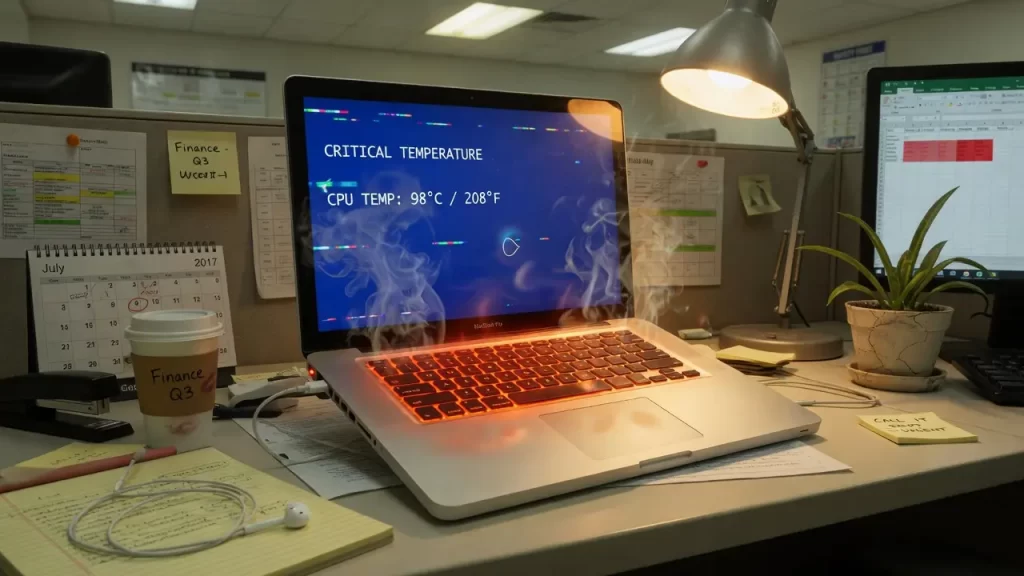
Modern CPUs and GPUs generate intense heat. Compact laptop designs, dust-clogged vents and fans, degraded thermal paste, and poor airflow (e.g., using on soft surfaces) push temperatures too high—often above 85–95°C. High ambient heat or demanding tasks like video editing accelerate the problem, triggering protective throttling that halves processing speeds.
Signs include excessive fan noise, a hot chassis, lagging apps, frame drops in games, and sudden shutdowns. Thermal throttling protects hardware but makes even basic tasks feel sluggish.
DIY Ways to Reduce Laptop Overheating
Quick steps to try at home:
- Place the laptop on a hard, flat surface with clear airflow around vents.
- Clean external vents with compressed air (every 6–12 months).
- Use a laptop cooling pad during heavy use.
- Close background programs and monitor temperatures with free tools like HWMonitor.
These measures help manage symptoms and reduce heat buildup.
Professional Service for Overheating and Thermal Throttling Fix
For lasting results, professionals disassemble the device safely, deep-clean internal dust from heatsinks and fans, replace dried thermal paste, and test cooling components. They can upgrade cooling solutions or diagnose failing fans and pads. In warmer climates like Atlanta, seasonal overheating spikes make proactive service particularly beneficial.
Expert repairs prevent permanent damage to solder joints and ensure full performance returns without risking static damage or bent pins from improper DIY cleaning.
Prevent Laptop Overheating Long-Term
Adopt these habits to avoid recurrence:
- Maintain good ventilation—never block vents.
- Schedule regular internal cleaning and thermal paste reapplication.
- Avoid overclocking without enhanced cooling to minimize laptop overheating.
- Monitor temperatures and adjust power settings (e.g., limit max processor state slightly in advanced power options).
Monitoring, 2026 Troubleshooting, and Software Solutions
Effective fixes for laptop overheating in 2026 require better visibility into your system. Upgrade from basic tools to more robust monitors like HWiNFO64, Core Temp, or Open Hardware Monitor. These provide detailed real-time readings for CPU/GPU core temperatures, fan speeds, and power draw—far more comprehensive than HWMonitor alone. Set custom alerts for when temperatures approach 85°C to catch issues early.
Many Windows 11 users in 2025–2026 reported laptop overheating increased after cumulative updates (such as those in the 25H2 series), often due to aggressive background processes, driver conflicts, or altered power management. If overheating started post-update, check Task Manager for high CPU usage from processes like Windows Modules Installer or SearchIndexer. Disable unnecessary Windows features (e.g., certain Copilot integrations or visual effects) via Settings to reduce background load. For advanced control, tools like ThrottleStop allow safe undervolting (starting at -100mV on CPU core and cache) and custom power profiles that limit turbo boost without major performance loss, helping prevent thermal throttling during gaming or multitasking.
Power plan tweaks remain effective: In Edit Power Plan > Change advanced power settings > Processor power management, reduce Maximum processor state to 99% on both battery and plugged-in modes. This curbs excessive turbo frequencies that generate unnecessary heat in slim chassis.
Unchecked overheating accelerates wear on components, degrades batteries faster, and can cause permanent throttling or hardware failure. Professional thermal diagnostics go beyond DIY limits by using thermal imaging, stress testing, and high-quality thermal paste replacements (such as PTM7950 for better longevity). In Atlanta-area homes with remote work or gaming setups, certified technicians provide on-site cleaning, repasting, and optimization—often restoring full speed in one visit while offering maintenance plans.
If your laptop runs hot or slows under normal load despite basic fixes, don’t risk further damage. Schedule a professional diagnostic today for expert cleaning, advanced tuning, and long-term thermal management. Restore snappy performance and extend your laptop’s life with reliable solutions tailored to 2026 hardware and software realities.